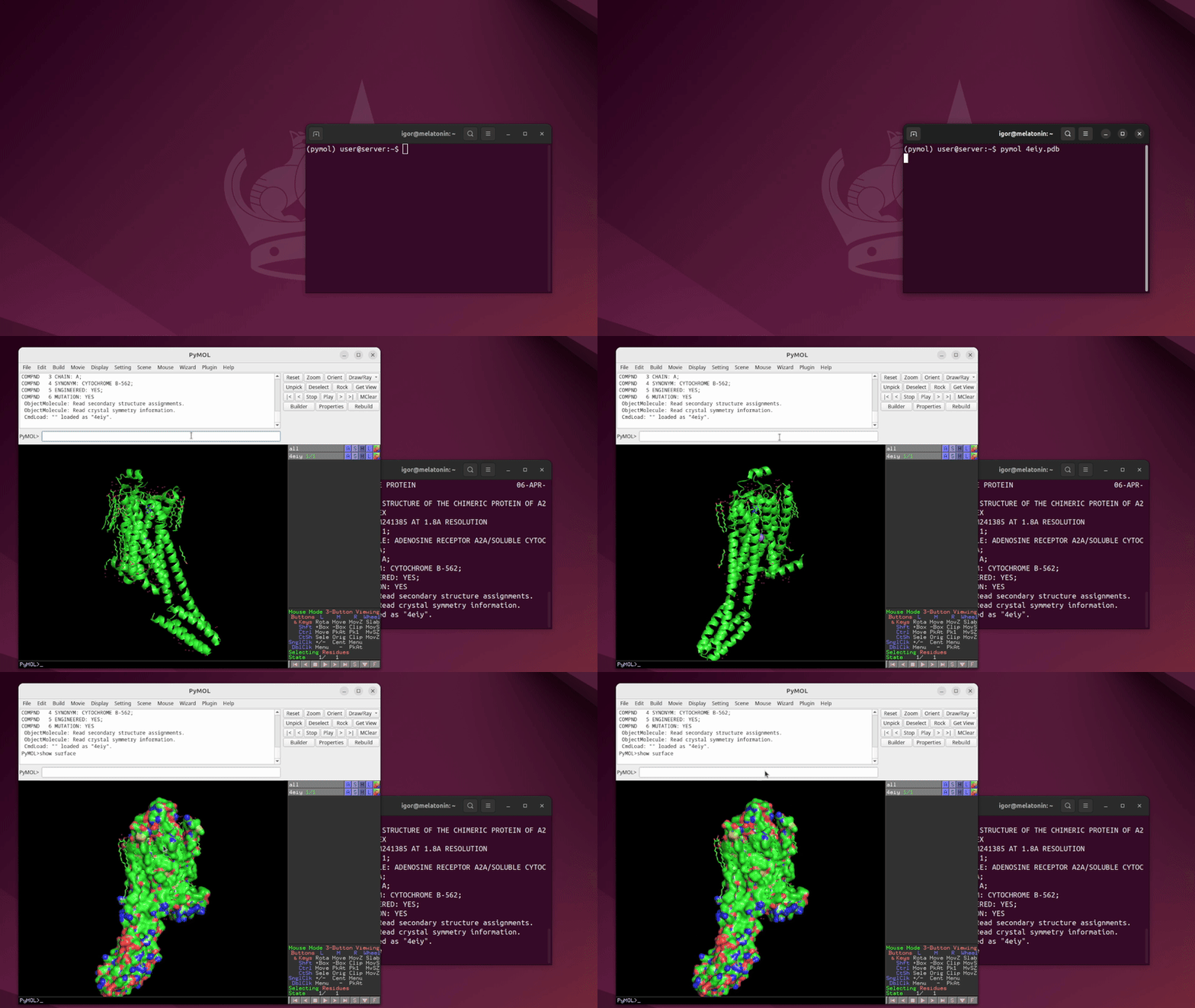
Running PyMOL on a remote GPU server is often more painful than it should be:
You can’t use AnyDesk / RDP because of institutional policy.
The server is headless (no display, no local X session).
X11 forwarding sometimes works, sometimes not, and is often ridiculously slow.
There are some workarounds:
ssh -X pymol
browser-based viewers like py3Dmol, nglview, etc.
VS Code / web-based viewers.
…but they all have trade-offs:
ssh -X is almost always too laggy over a real network and often falls back to software rendering (no GPU).
Copying structures or MD trajectories to a laptop just to visualize them is slow and inconvenient; long trajectories are often huge, and many lightweight viewers don’t handle trajectories particularly well anyway.
Notebook / browser viewers are great for quick inspection, but:
it’s harder to do complex selections,
you don’t get the same level of interactive control as in PyMOL,
and they’re not ideal for publication-quality renders with fine-tuned lighting, ray-tracing, etc.
What I really want is:
Full PyMOL, on the remote GPU, but the window appears locally and stays responsive.
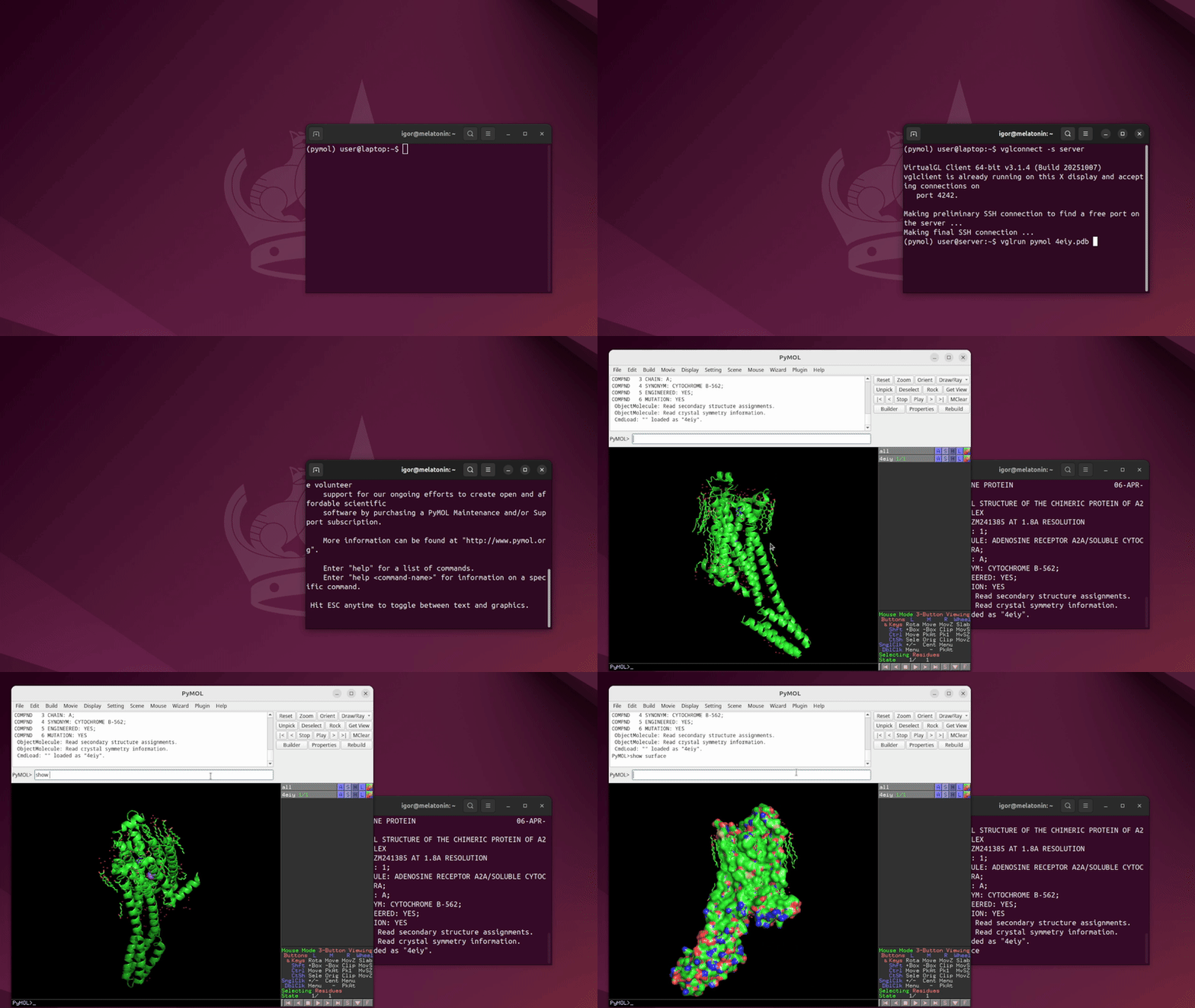
That’s exactly what VirtualGL gives: the server does the GPU rendering, sends compressed frames over SSH, and you see a normal window on your machine.
In this note I’ll focus on that:
Why not just ssh -X?
Setting up VirtualGL.
Option A — VirtualGL over SSH (vglconnect + vglrun): single PyMOL window (my default).
Option B — TurboVNC + VirtualGL: full remote desktop, in case you want PyMOL + everything else.
Notebook-based viewers in Jupyter (py3Dmol, nglview).
Molecular viewers in VS Code (Protein Viewer, Nano Protein Viewer).
Summary.
0. Why not just ssh -X?
The traditional way is:
ssh-X user@serverpymol some_structure.pdb
This uses X11 forwarding:
raw drawing commands are sent over the network,
rendering often happens on the client, not on the remote GPU,
the protocol is not optimized for 3D graphics.
In practice this usually means:
terrible FPS when you rotate the molecule,
high latency,
broken or messy behavior with modern setups (Wayland on the client, EGL-only servers, etc.).
It’s fine for showing a small dialog, but for interactive 3D molecular graphics it’s not pleasant.
You need VirtualGL on both the server and your local machine.
If you don’t have sudo on the server, you need an admin to do this section once (install VirtualGL, run vglserver_config, add you to vglusers). After that, everything below works unprivileged.
1.1. Install VirtualGL on the server
Download and install the .deb (example URL, adjust version if needed):
# on the servercurl-L-o /tmp/virtualgl.deb \ https://packagecloud.io/dcommander/virtualgl/packages/any/any/virtualgl_3.1.1-20240228_amd64.deb/downloadsudo dpkg -i /tmp/virtualgl.deb
Then run the configuration script:
sudo /opt/VirtualGL/bin/vglserver_config
In the interactive dialog I typically choose:
1) GLX + EGL if I don’t care about local Wayland logins on that machine (most compatible, but may force local users to X11), or
3) EGL only if the machine is basically a headless GPU box and I don’t want to mess with GLX.
Other important prompts:
Restrict 3D access to group vglusers? → Y
Add your user to vglusers? → Y
After that:
Log out and log back in so the new group membership is active, or
run newgrp vglusers once in an existing shell as a quick workaround.
You do not need to run newgrp vglusers on every login; it’s a one-time thing after being added to the group.
1.2. Install VirtualGL on your local machine
Same idea on the client:
# on your local machinecurl-L-o /tmp/virtualgl.deb \ https://packagecloud.io/dcommander/virtualgl/packages/any/any/virtualgl_3.1.1-20240228_amd64.deb/downloadsudo dpkg -i /tmp/virtualgl.deb
That’s usually it. No additional configuration needed on the client side.
1.3. Make the VirtualGL environment automatic (recommended)
On the server, once your account is in vglusers and you’ve re-logged, add this to ~/.bashrc (or ~/.zshrc):
# VirtualGL defaults for this serverexportVGL_DISPLAY=eglexportVGL_IMAGEQUAL=95exportVGL_NPROCS=4
If you only want this for interactive shells, you can wrap it:
If you see llvmpipe or Mesa, you’re not using the GPU.
2.3. Run PyMOL via VirtualGL
Now just:
vglrun pymol /path/to/your_structure.pdb
A PyMOL window should pop up on your local desktop.
From PyMOL’s point of view it’s running on the server, with access to server-side file paths and GPUs. From your point of view it behaves like a local app, but:
less lag than X forwarding,
proper OpenGL on the remote GPU,
works even when RDP/AnyDesk/etc. are blocked.
Inside PyMOL I also enable this setting for correct visualization of surface with transparency:
set transparency_mode, 2
3. Option B — TurboVNC + VirtualGL (full remote desktop)
Sometimes you want more than just PyMOL:
multiple terminals,
a web browser,
perhaps another molecular viewer (Chimera(X), VMD, Coot, etc.),
all running in a persistent remote session you can reconnect to.
For that, I use TurboVNC + VirtualGL:
TurboVNC provides the remote desktop.
VirtualGL provides GPU-accelerated 3D rendering inside that desktop.
3.1. Install TurboVNC and a lightweight desktop
On the server (again, admin once; if you don’t have sudo, they do this step):
3Dmol.js failed to load for some reason. Please check your browser console for error messages.
nglview
Code
import nglview as nvw = nv.show_file("protein.pdb")w.clear_representations()w.add_cartoon()w
These are great for:
quick inspection,
sharing small notebooks with embedded 3D views,
not dealing with any X/VirtualGL setup.
But compared to full PyMOL, in my experience:
it’s harder to do very detailed selections and custom combinations of objects,
you don’t get the same level of scriptable rendering control,
and they’re not the best choice for final, publication-quality figures.
There are more notebook-based viewers out there; I’m just listing the two I actually tried.
6. Molecular viewers in VS Code (Protein Viewer, Nano Protein Viewer)
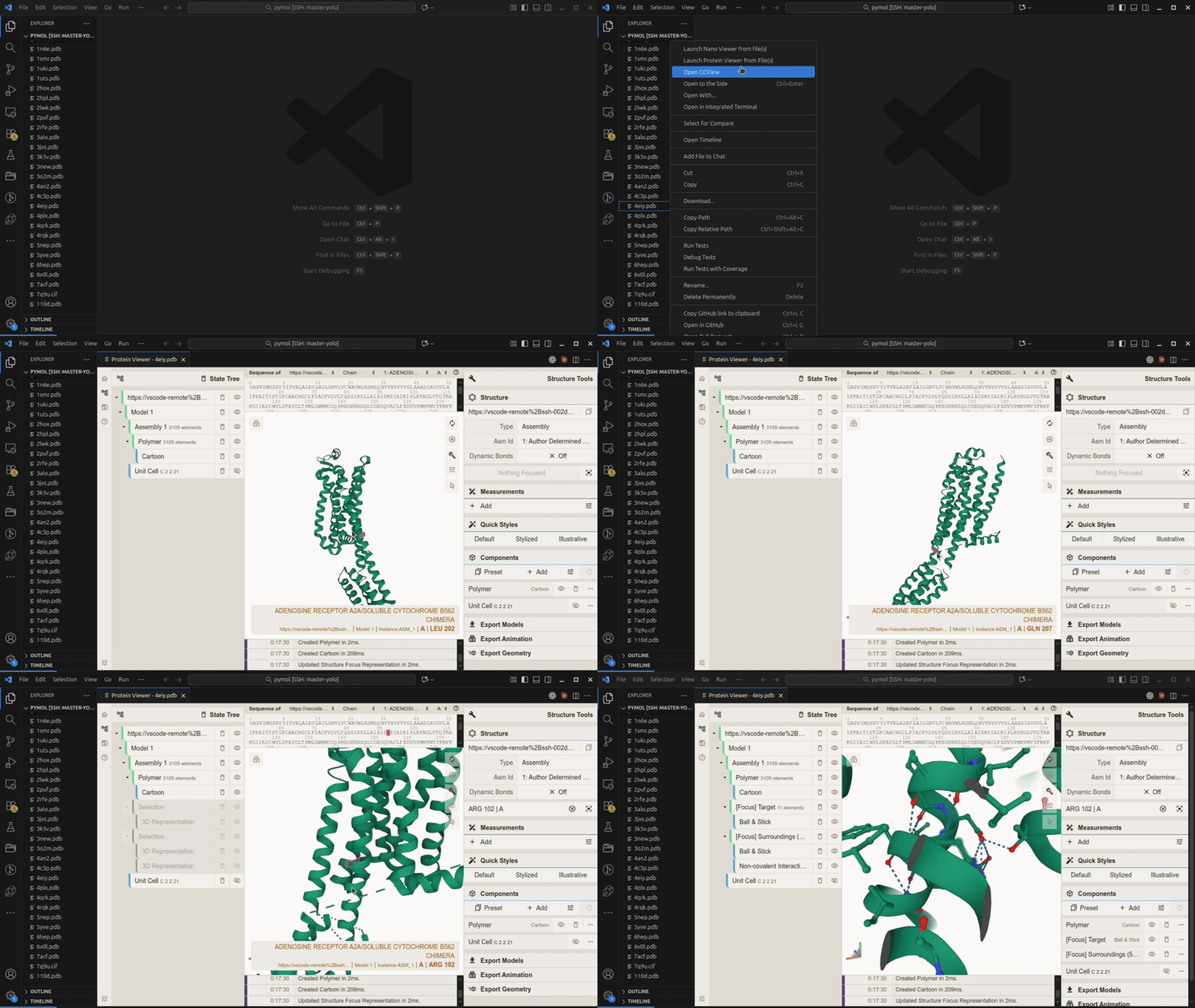
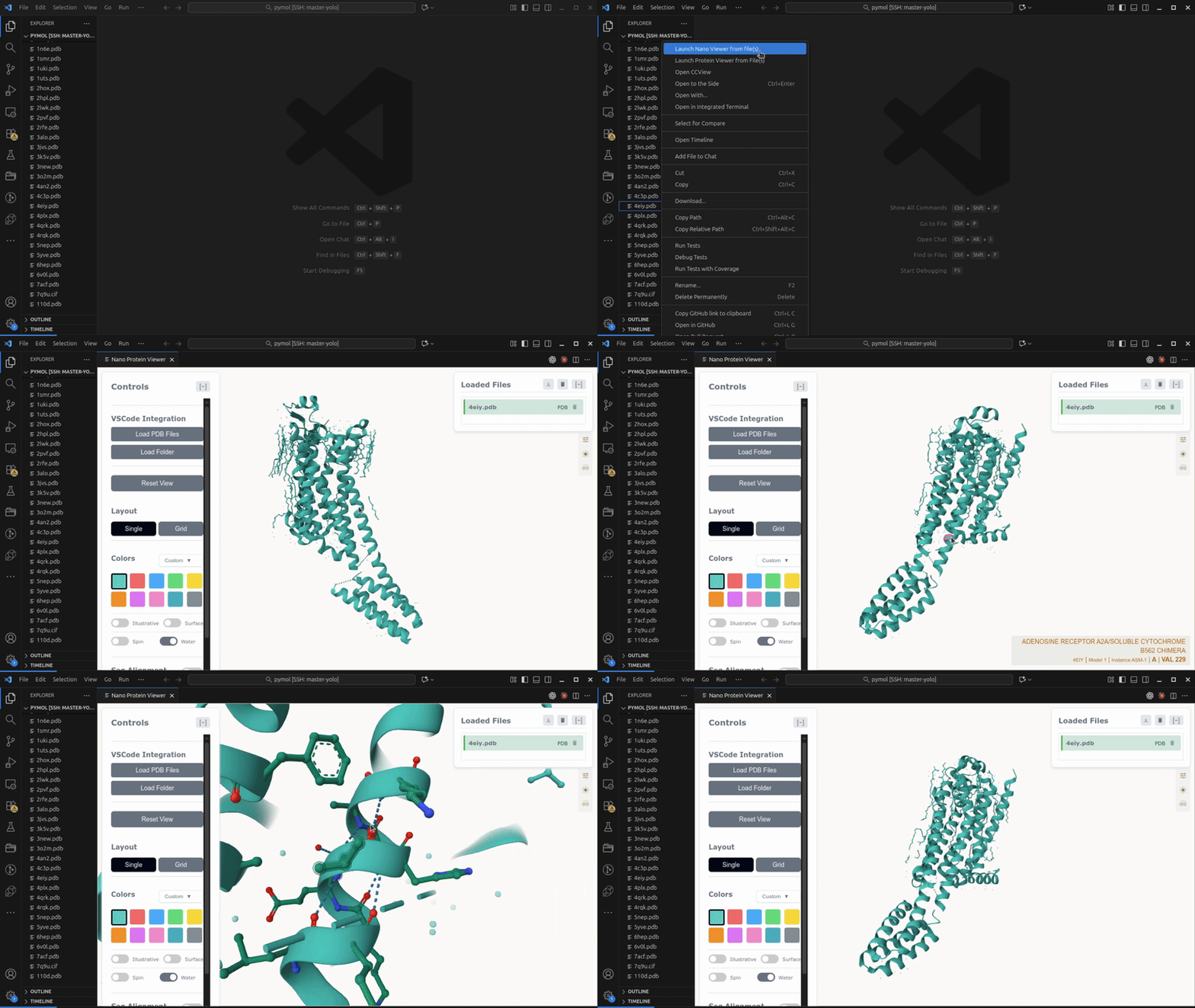
If you’re already editing code on the remote server via VS Code Remote SSH, it’s nice to be able to open a *.pdb or *.cif and immediately see a 3D view next to the code.
Two VS Code extensions that do this using Mol* under the hood:
Protein Viewer – extension by Arian Jamasb; simple viewer for biological structures.
Nano Protein Viewer – extension by Steven Yu; more advanced, grid view, Alphafold / diffusion-related features.
Basic installation (on your local machine):
# from terminal, with VS Code closedcode--install-extension ArianJamasb.protein-viewercode--install-extension StevenYu.nano-protein-viewer
Or via GUI:
Open VS Code.
Go to Extensions (Ctrl+Shift+X / Cmd+Shift+X).
Search for “Protein Viewer” and/or “Nano Protein Viewer”.
Install.
Workflow (with Remote SSH):
Open the remote project in VS Code (using the Remote SSH extension).
Open a structure file (.pdb, .cif, .mol2, etc.).
Use the extension’s command (usually from the Command Palette or a button in the editor) to open the 3D view.
This is very handy for:
quickly checking structures without leaving VS Code,
having multiple proteins open in a grid (Nano Protein Viewer),
fast “sanity check” visualization while coding.
One practical note: these extensions rely on HTML/JS webviews inside VS Code. In my experience, the snap build of VS Code on Ubuntu tends to break webview-based stuff more easily (or be slower). I’d recommend installing VS Code from the .deb package instead of the snap if you want these viewers to work reliably.
7. Summary
ssh -X pymoldoes work, but is usually too slow and often doesn’t use the GPU.
VirtualGL lets the server GPU do the heavy lifting and sends compressed frames to your local machine.
If you don’t have sudo, you just need an admin to:
install VirtualGL / TurboVNC once,
run vglserver_config,
add you to vglusers. After that, your everyday workflow is unprivileged.
For day-to-day work I use:
Option A — vglconnect + vglrun pymol: simple, single-window workflow.
Option B — TurboVNC + VirtualGL when I want a full desktop session and multiple tools (PyMOL, Chimera, VMD, etc.).
For lightweight inspection:
use py3Dmol / nglview inside Jupyter,
or Protein Viewer / Nano Protein Viewer inside VS Code.
They don’t fully replace PyMOL for complex selections and publication-quality renders, but together they cover most of the “I just need to see this structure quickly, from a remote machine” use cases.